Create and Assign a Task
Tasks are structured units of work you assign to agents. Each task has a summary, optional details, and subtasks (steps) that the agent works through.
Prerequisites
- At least one running agent to assign the task to (or leave it unassigned for later)
Steps
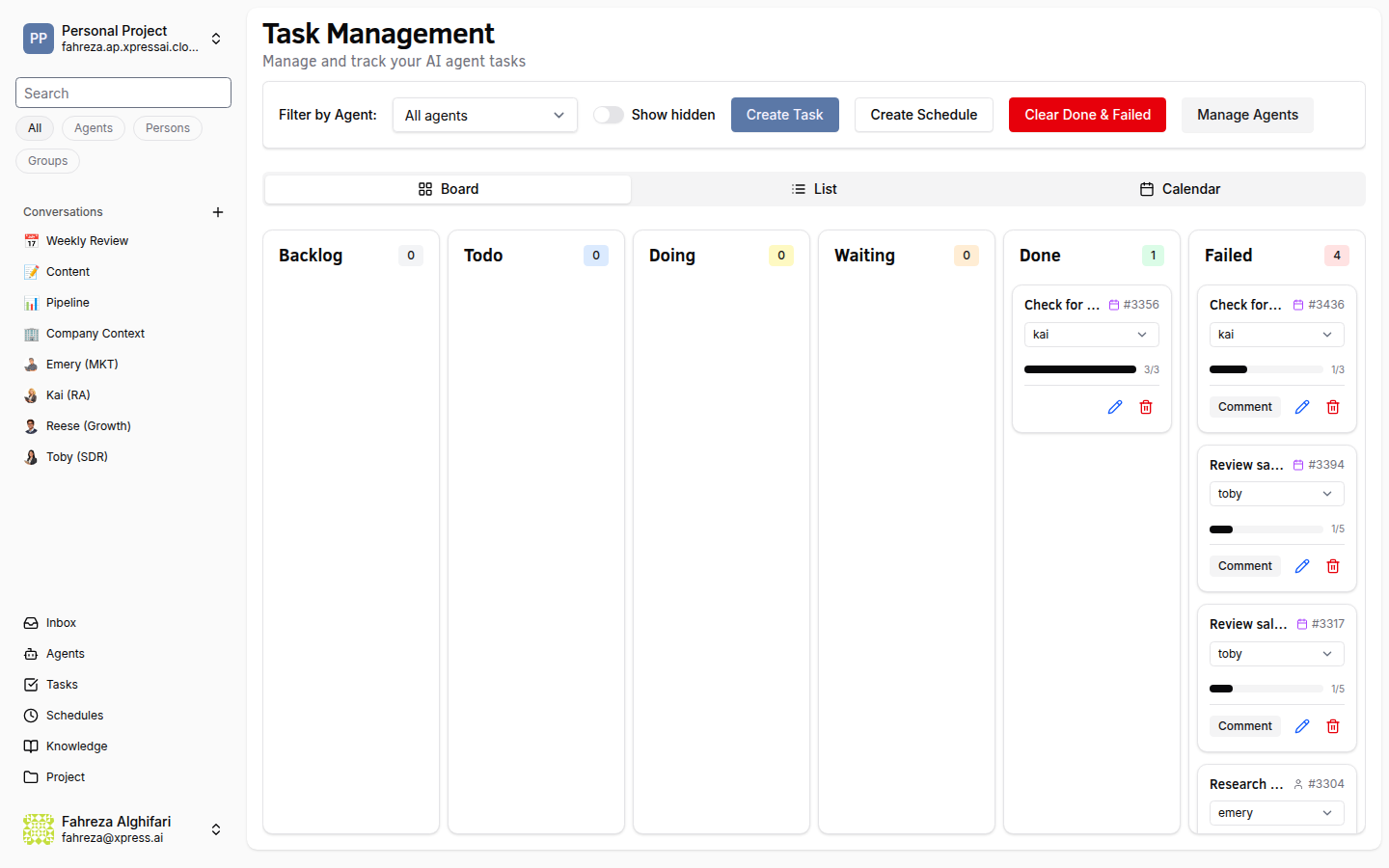
1. Open the task creation form
Navigate to Tasks in the sidebar and click Create Task. You can also use the keyboard shortcut Cmd/Ctrl+K or press the C key from the Tasks page.
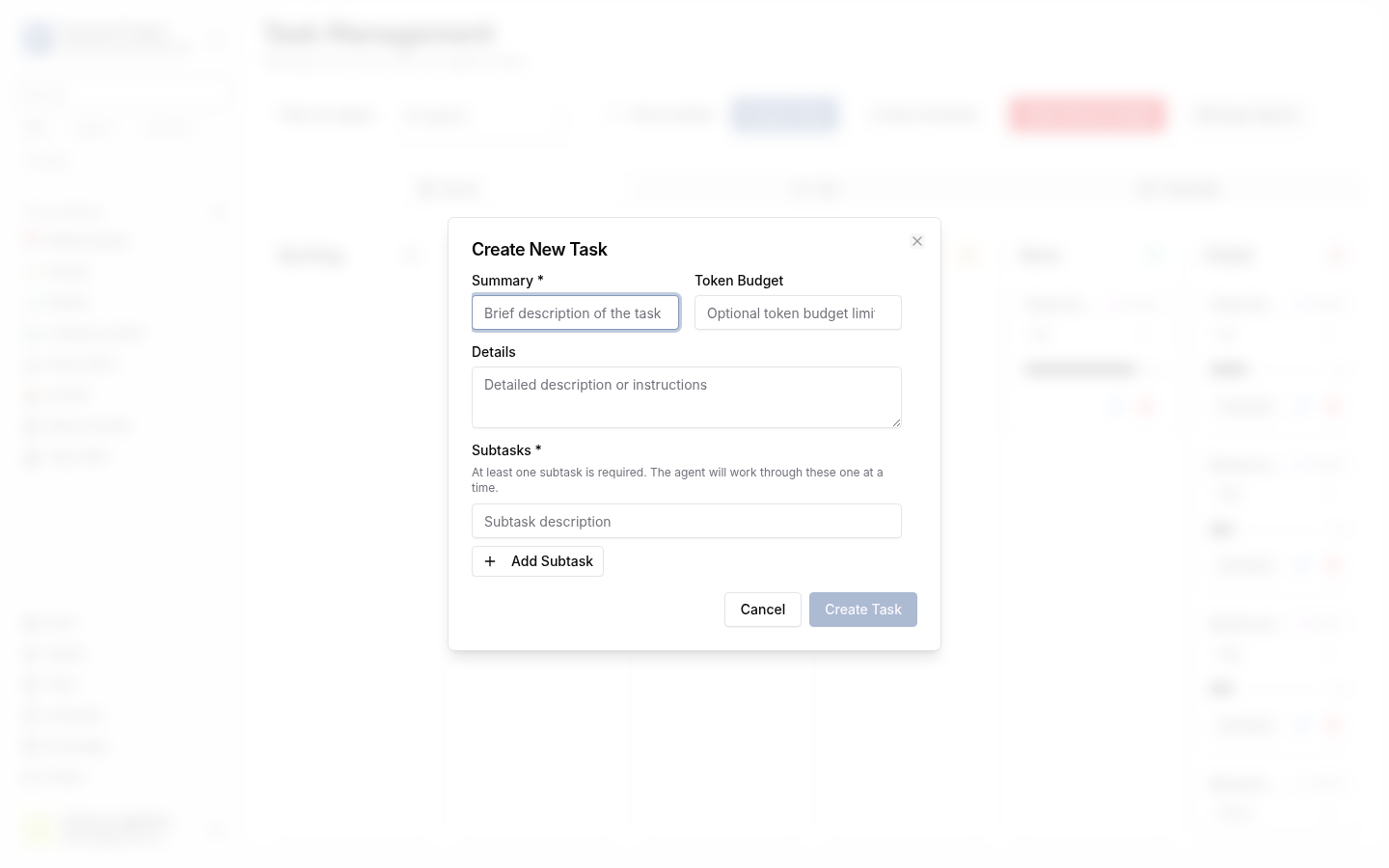
2. Fill in the task summary
Enter a clear, concise summary of what needs to be done. This is the main title of the task and appears in all views (Kanban, list, calendar).
3. Add details (optional)
Expand the details section to provide additional context, background information, or specific requirements. The agent reads this when it picks up the task.
4. Define steps (subtasks)
Add one or more steps that break the task into smaller pieces. Each step becomes a trackable subtask with its own status. Be specific -- clear steps help the agent understand exactly what to do and in what order.
5. Assign to an agent
Select an agent from the Assignee dropdown. The agent begins working on the task once it is moved to an active status.
If you are not ready to assign it yet, leave the assignee blank. You can assign it later from the task detail view.
6. Create the task
Click Create. The task starts in Backlog status.
7. Activate the task
Move the task to Todo or Doing status for the agent to begin working on it. Tasks in Backlog are not actively worked on. You can change the status by dragging the task card in the Kanban view or using the status dropdown in the task detail view.
Verify
- The task appears on the Tasks page in the Backlog column (Kanban view) or with Backlog status (list view).
- If assigned, the agent picks up the task when it is moved to Todo or Doing status.
Well-defined steps make a big difference. Instead of "Research competitors," try breaking it into steps like "Identify top 5 competitors," "Summarize each competitor's pricing model," and "Create a comparison table."