Provision a Cloud Desktop
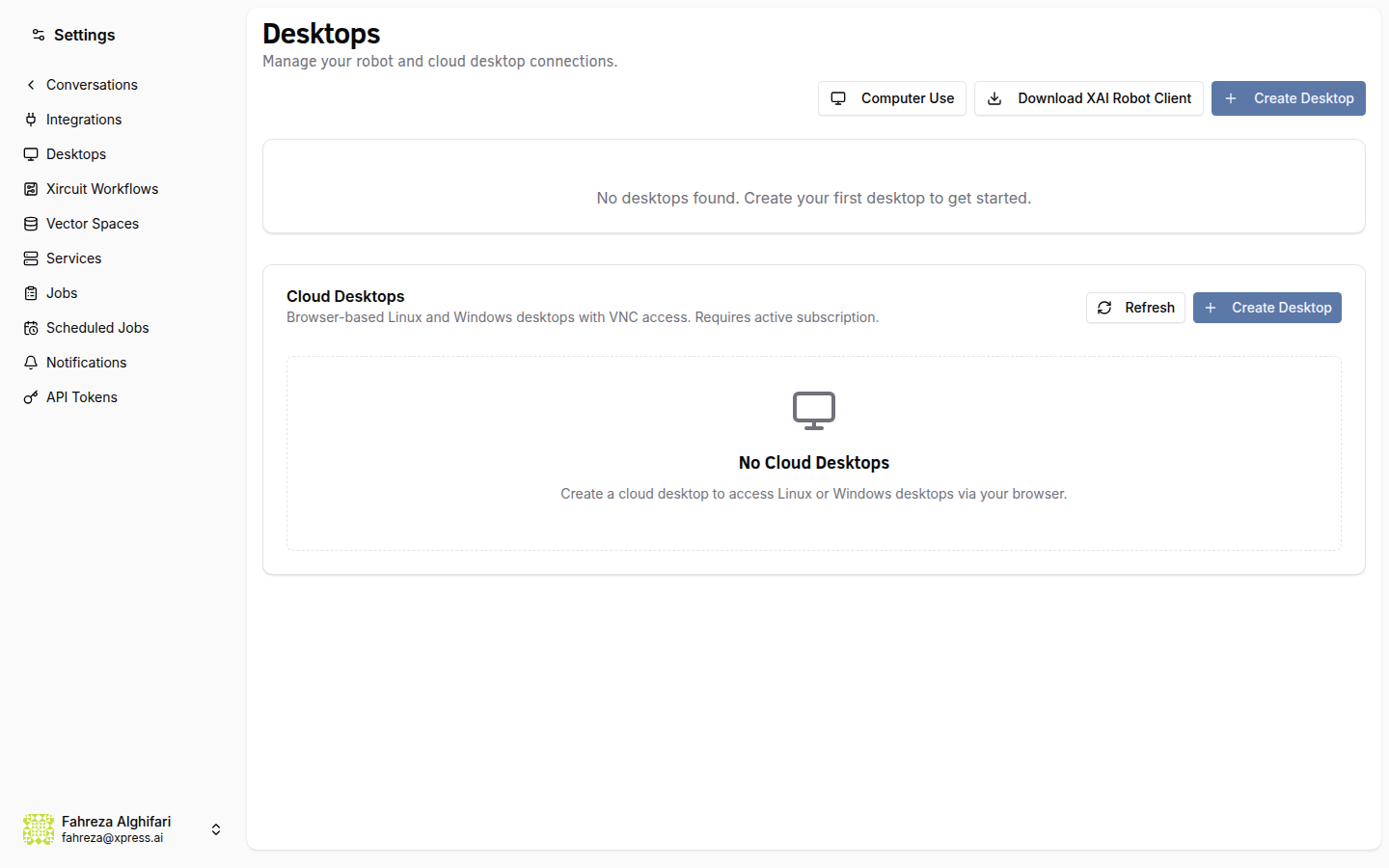
Cloud desktops are virtual machines that agents can interact with using computer-use tools. You can provision Linux or Windows desktops from the platform.
Prerequisites
- You are signed in to the XpressAI Platform.
- You have a subscription plan that supports cloud desktops, or you are willing to pay per desktop via Stripe.
Steps
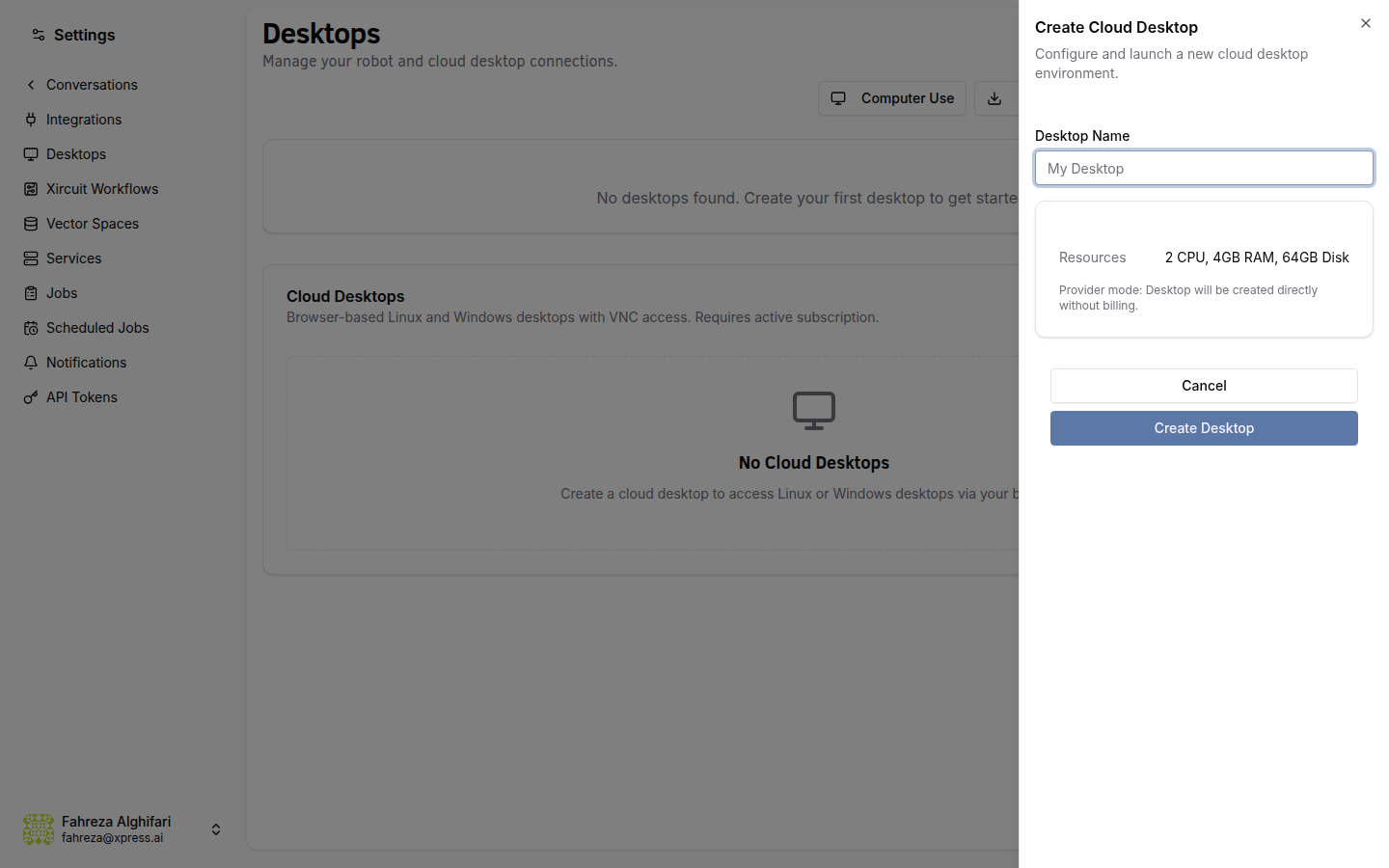
- Navigate to Settings from the top navigation bar.
- Select Desktops.
- Click Add.
- Choose the operating system:
- Linux
- Windows
- Review the pricing and click Continue to proceed to Stripe checkout.
- Complete the payment.
- Wait for the desktop to finish provisioning. This typically takes a few minutes.
info
Cloud desktops are billed separately from your platform subscription. You can manage desktop billing through the Stripe customer portal.
warning
Provisioning times vary. The desktop status will update from Provisioning to Ready once the VM is available. Do not close the page during provisioning -- if you do, the provisioning continues in the background, but you will not see status updates until you return to the Desktops page.
Verify
- The new desktop appears in the Desktops list with a Ready status.
- The desktop shows the operating system, connection details, and management options.