Create a Recurring Schedule
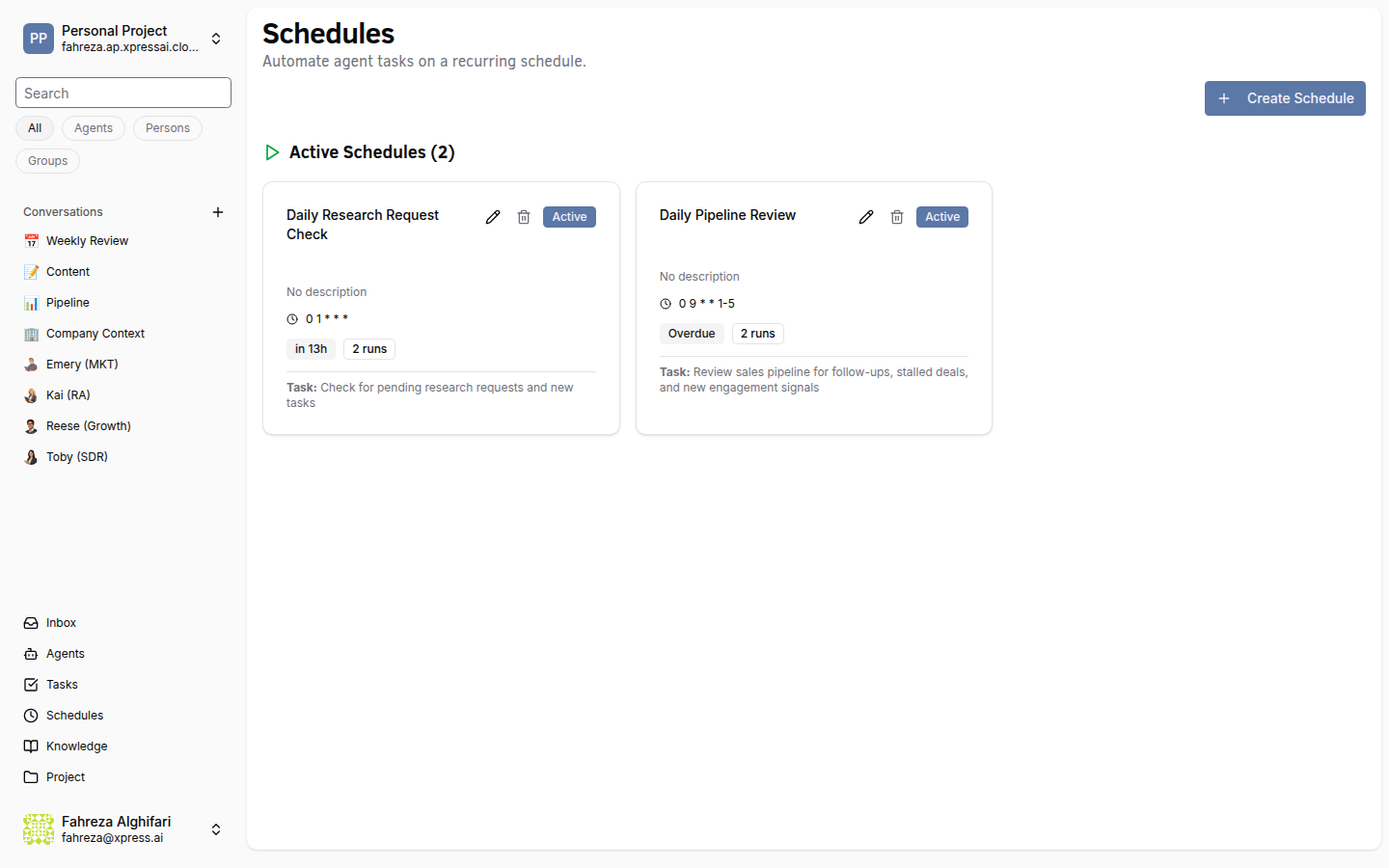
Schedules let you run jobs automatically at specified intervals. You can schedule Xircuits workflows or custom commands using cron expressions.
Prerequisites
- You are signed in to the XpressAI Platform.
- You have at least one deployed agent or Xircuits workflow (if scheduling a workflow job).
Steps
- Navigate to the Schedules section from the sidebar.
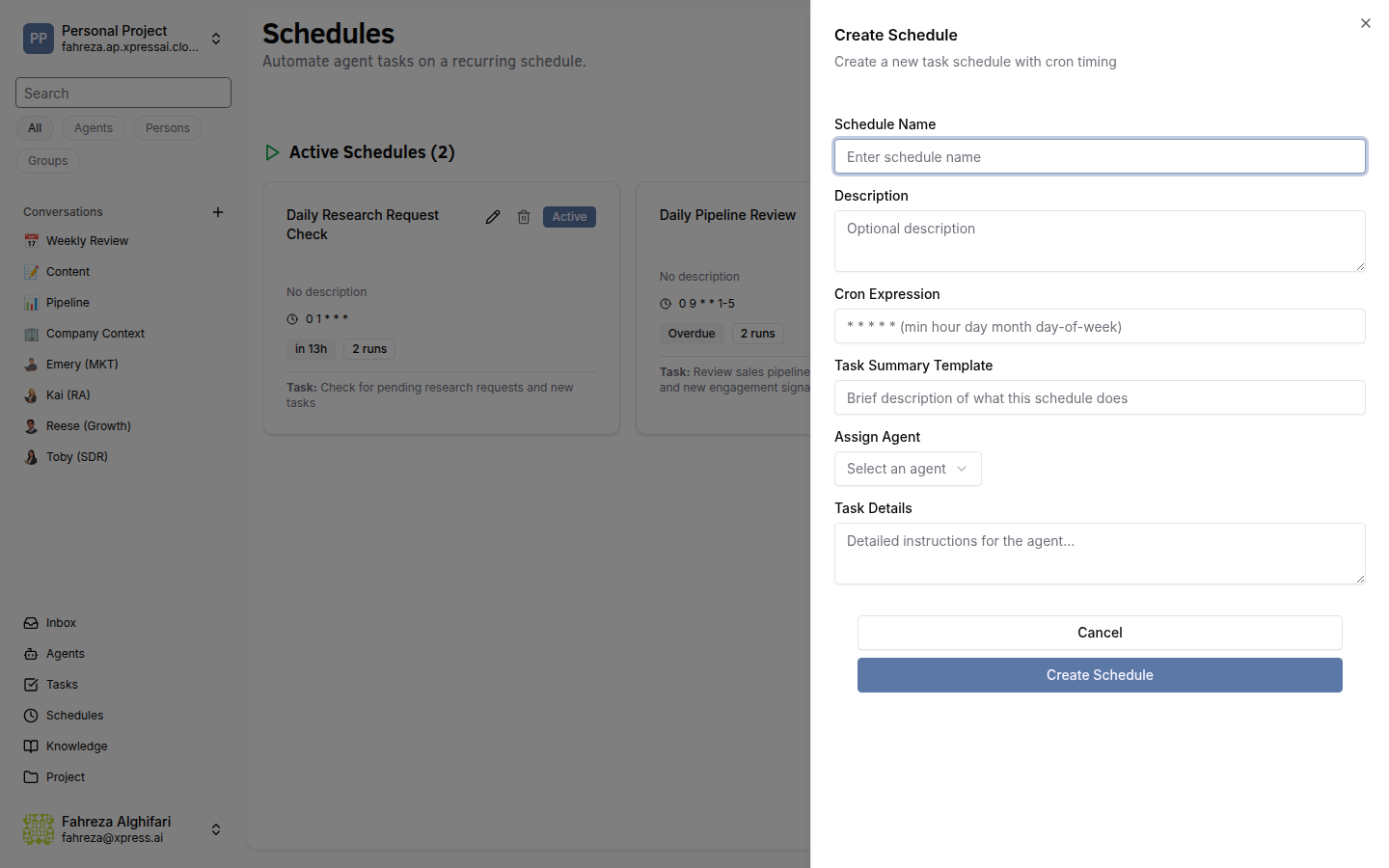
- Click Create Schedule.
- Enter a name for the schedule.
- Select the job type:
- Xircuits -- runs a compiled Xircuits workflow.
- Custom Command -- runs a shell command in the agent container.
- Configure the cron expression for the desired frequency.
- Select the timezone for the schedule.
- Click Save.
Common cron expressions
| Cron Expression | Meaning |
|---|---|
* * * * * | Every minute |
0 * * * * | Every hour (at minute 0) |
0 9 * * * | Every day at 9:00 AM |
0 9 * * 1 | Every Monday at 9:00 AM |
0 0 1 * * | First day of every month at midnight |
*/15 * * * * | Every 15 minutes |
0 9,17 * * * | Every day at 9:00 AM and 5:00 PM |
info
Cron expressions use the standard 5-field Unix format: minute hour day-of-month month day-of-week. The platform handles the conversion to the internal 6-field format automatically.
tip
After saving, the schedule detail view shows the next fire time so you can confirm the schedule is set correctly.
Verify
- The new schedule appears in the Schedules list.
- The next fire time is displayed and matches your expected timing.
- After the first scheduled execution, a job entry appears in the execution history.