Create an Agent from a Template
Templates give you a pre-configured agent with a role, procedures, and skills already set up. Pick one, name it, and you have a working agent in seconds.
Prerequisites
- An active XpressAI Platform account
- At least one available agent slot on your subscription plan
Steps
1. Open the template browser
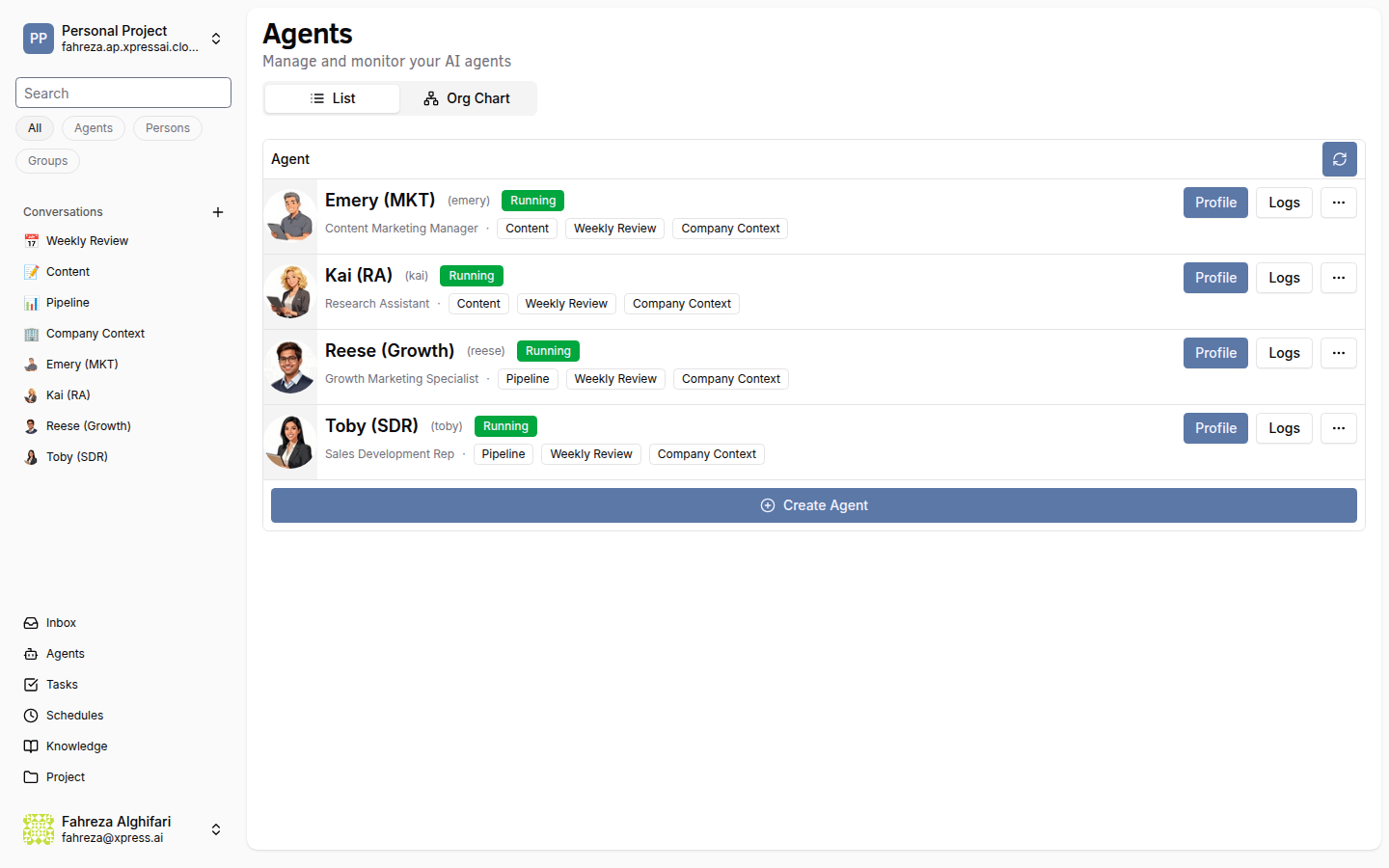
Navigate to Agents in the sidebar, then click Create Agent. The platform displays the available templates.
2. Choose a template
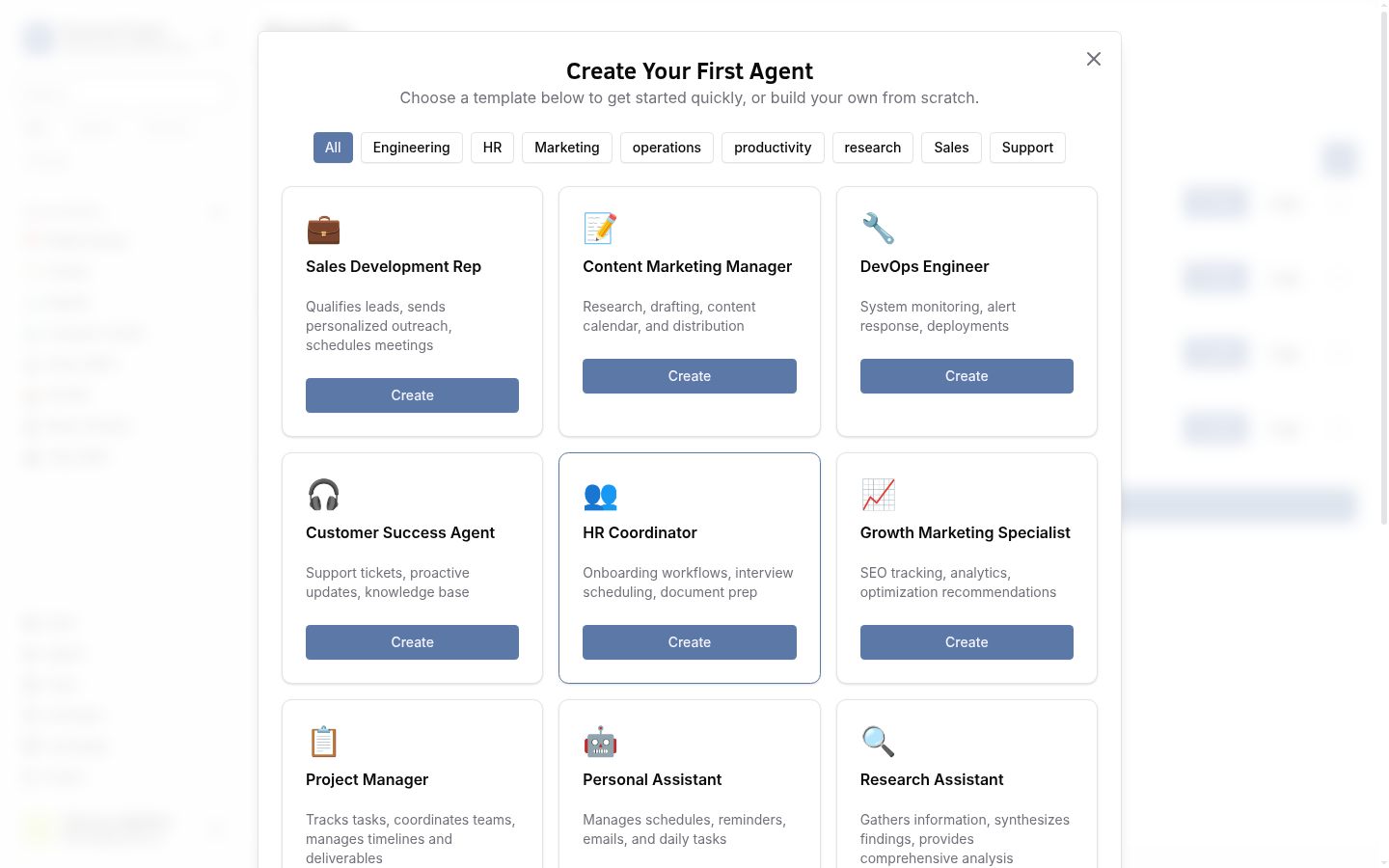
Browse the templates and select the one that fits your use case:
| Template | Description |
|---|---|
| Personal Assistant | General-purpose helper for everyday tasks |
| Researcher | Gathers and synthesizes information from the web |
| Content Writer | Drafts blog posts, articles, and marketing copy |
| Data Analyst | Analyzes data, generates charts, and produces reports |
| Software Engineer | Writes, reviews, and debugs code |
| Customer Support | Handles support tickets and customer inquiries |
| Project Manager | Coordinates tasks, timelines, and team updates |
| Sales Rep | Manages outreach, follow-ups, and pipeline tracking |
| HR Assistant | Handles onboarding, policy questions, and scheduling |
| Executive Assistant | Calendar management, briefings, and communications |
Click a template card to select it.
3. Name your agent
Enter a display name for your agent. This name appears in conversations, task assignments, and the agent list. The platform also generates a service name based on what you enter.
4. Create the agent
Click Create. The platform deploys a Knative service for your agent and begins provisioning.
5. Wait for the Running status
The agent moves through these states: Creating then Running. Once the status shows Running, your agent is ready to use. This typically takes 10--30 seconds.
Verify
- The agent appears in your Agents list with a Running status badge.
- A DM conversation with the agent is automatically created in your Conversations sidebar.
Troubleshooting
If the agent stays in a Creating state for more than a minute, try refreshing the page. If it still does not start, check that you have not exceeded your plan's agent limit.
When a template is updated by the XpressAI team, you can pull in the latest changes by using the Resync option on your agent. This updates procedures, skills, and configuration to match the latest template version without losing your custom changes.