Customize an Agent Profile
Every agent has a profile that controls its identity, behavior, and organizational position. Use it to shape how the agent presents itself and how it relates to other agents.
Prerequisites
- A created agent (any status)
Steps
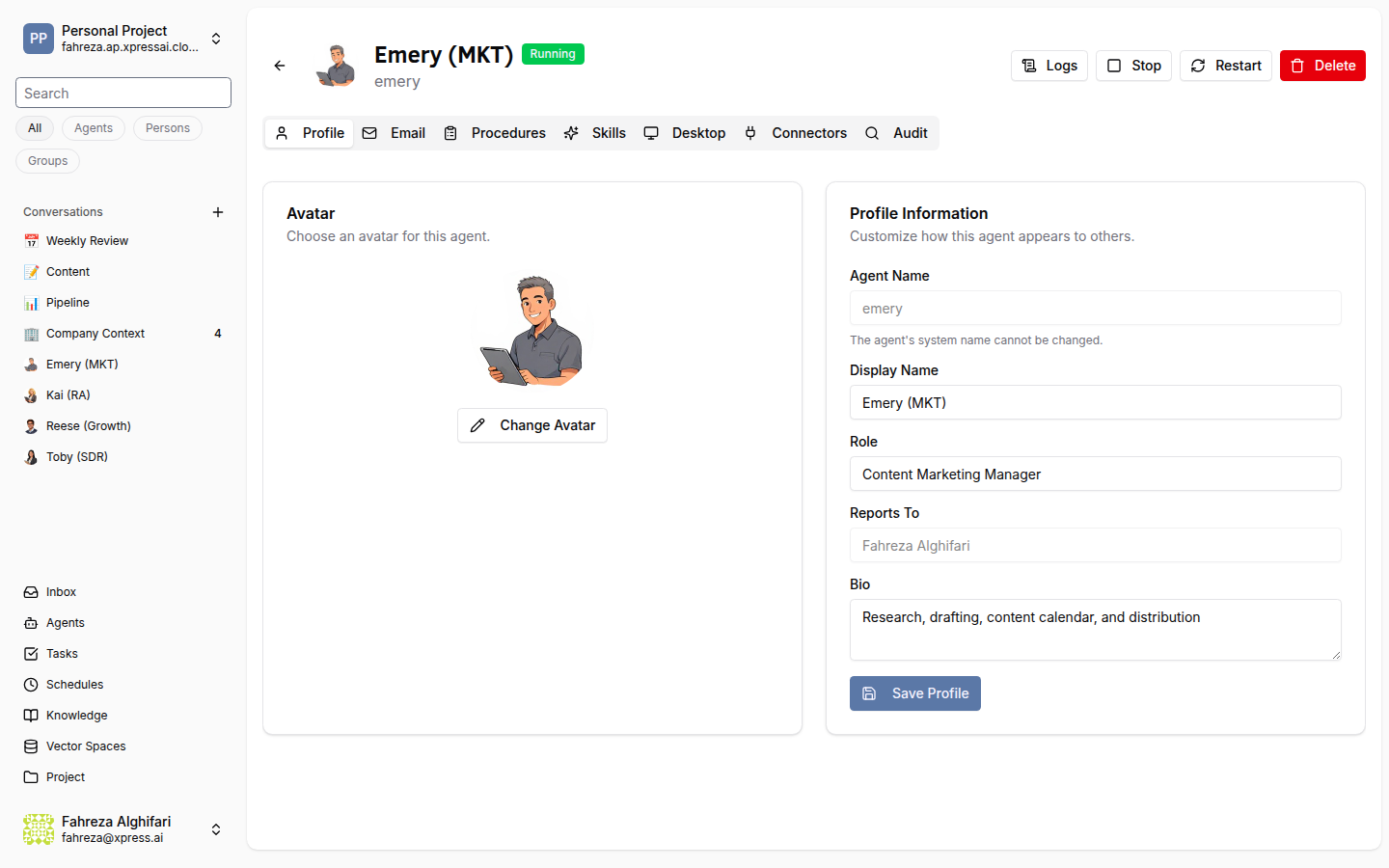
1. Open the Agent Profile page
Navigate to Agents in the sidebar and click on the agent you want to customize. This opens the Agent Profile page with several tabs across the top:
- Profile -- display name, role, bio, avatar, hierarchy
- Email Rules -- inbound and outbound email behavior
- Procedures -- step-by-step instructions the agent follows
- Skills -- reusable capability packages
- Desktop -- cloud desktop assignment
- Audit -- change history and activity log
2. Edit the display name
On the Profile tab, click the agent's name to edit it. This is the name that appears in conversations and task assignments.
3. Set the role description
Enter a short role description (e.g., "Senior Data Analyst" or "Customer Support Lead"). This helps other agents and humans understand what this agent does.
4. Write a bio
Add a bio that describes the agent's personality, expertise, and working style. The bio feeds into the agent's system prompt and influences how it communicates.
5. Change the reports-to agent
Select a different agent from the Reports To dropdown to place this agent in a hierarchy. The reports-to relationship determines task delegation chains -- a manager agent can assign work to agents that report to it.
6. Update the avatar
Click the avatar image to upload a new one. Supported formats include PNG and JPG. The avatar displays in conversations, the agent list, and task cards.
7. Save your changes
Click Save to apply your profile updates. Changes are not saved automatically — you must click Save before navigating away.
To assign a desktop, see Assign a Desktop to an Agent.
Verify
- Return to the Agents list and confirm the updated name and avatar appear.
- Open a conversation with the agent and check that its display name and avatar reflect your changes.
Changes to the agent's name and role description take effect on the next interaction. Changes to procedures, skills, and tools require a restart.