Configure Project Settings
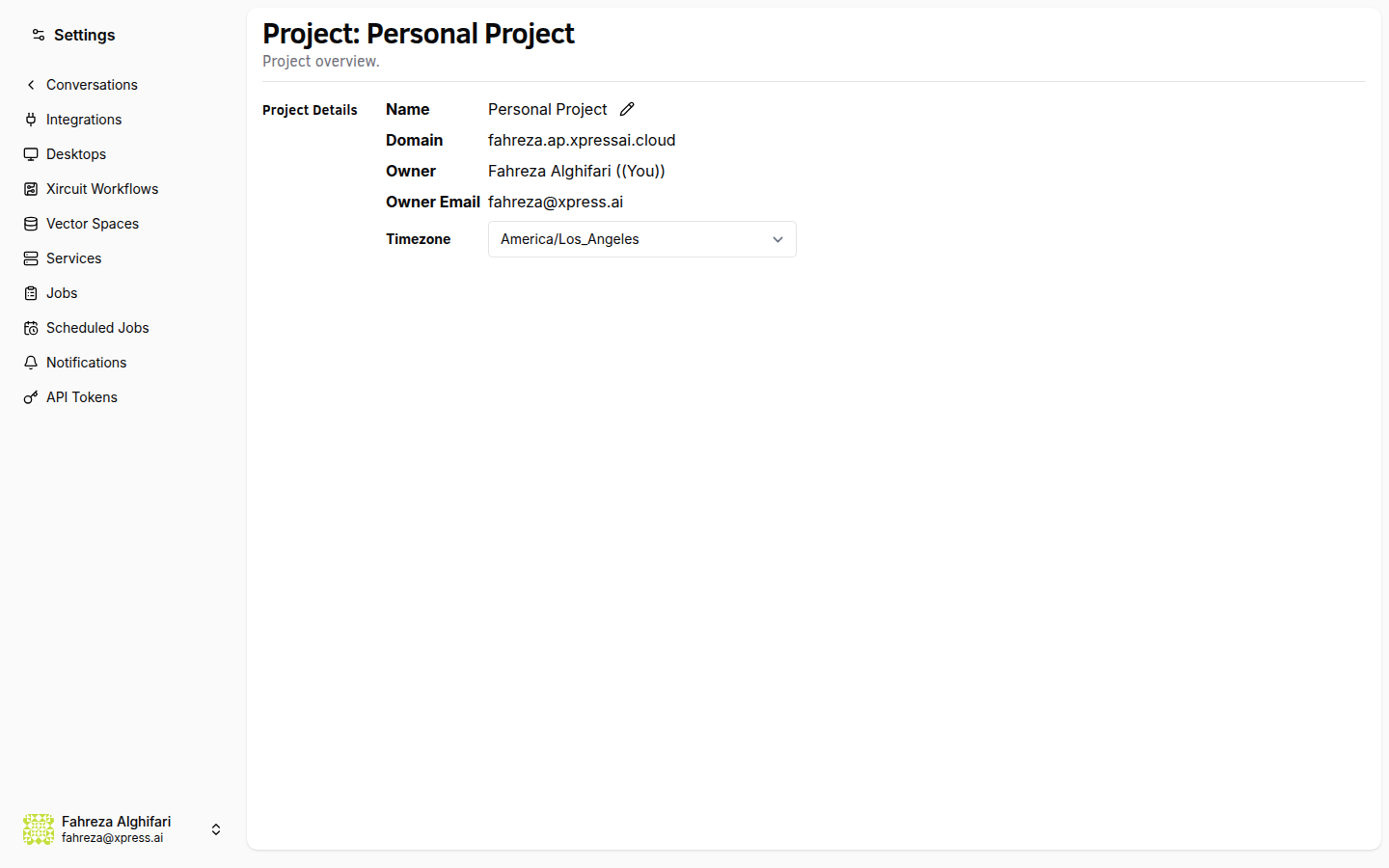
Adjust your project's timezone, notification defaults, and display name.
Prerequisites
- You are signed in to the XpressAI Platform.
- You are the project owner or have admin permissions.
Steps
- Navigate to Project Settings from the sidebar.
- Update the settings you want to change:
| Setting | Description |
|---|---|
| Project Name | The display name shown in the Project Selector and UI. |
| Timezone | The default timezone used for schedules, logs, and timestamps. |
| Notification Defaults | The default notification level for new conversations in this project. |
- Click Save.
tip
Set the timezone to match your team's primary working hours. Scheduled jobs and log timestamps will use this timezone.
info
Notification defaults apply to new conversations created after the change. Existing conversations retain their current notification settings.
Verify
- Updated settings are reflected in the Project Settings page.
- New schedules use the configured timezone.
- New conversations inherit the updated notification defaults.