Use Kanban, List, and Calendar Views
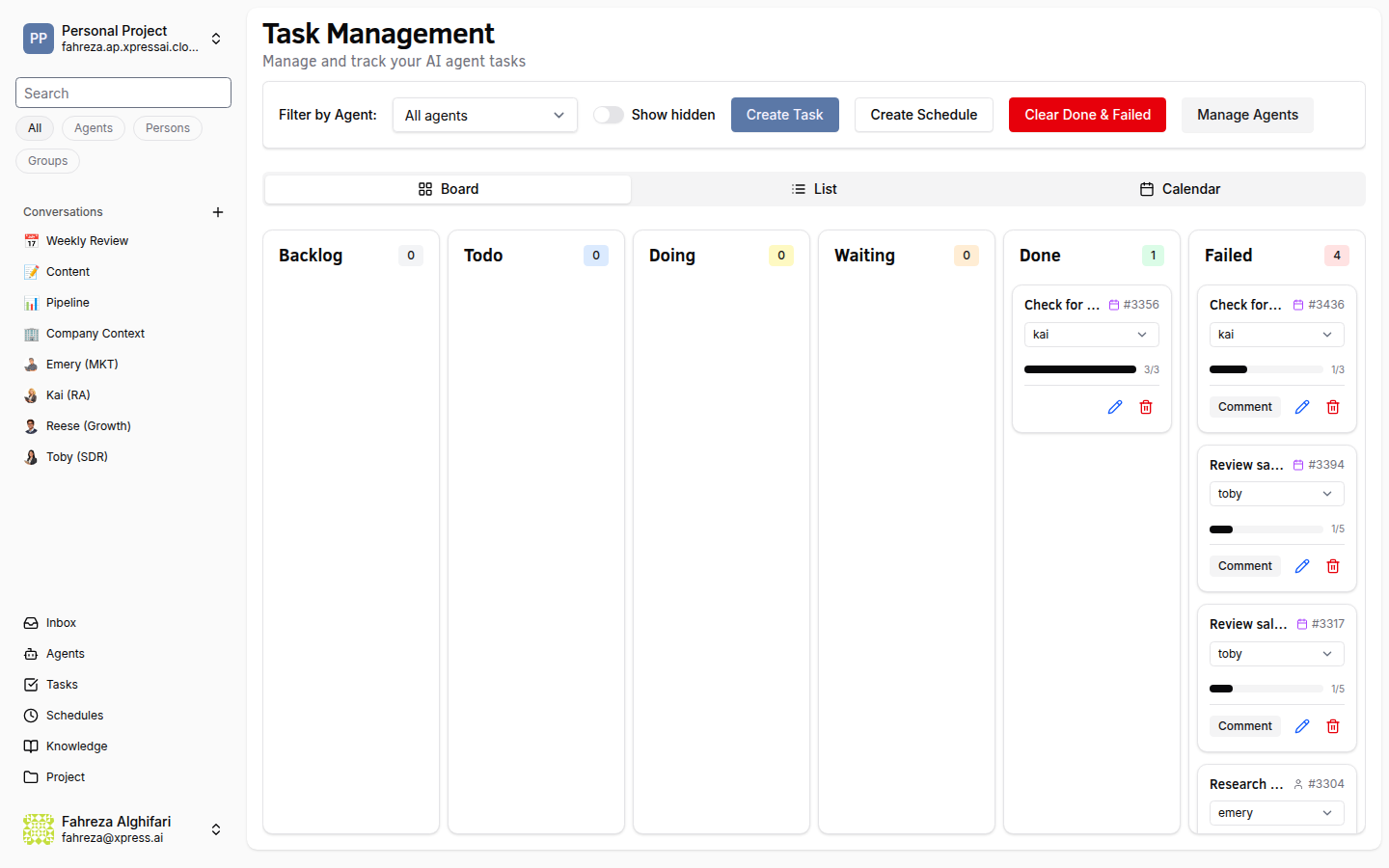
The Tasks page offers three views of the same data. Switch between them depending on how you prefer to work.
Prerequisites
- At least one task created
Steps
1. Navigate to the Tasks page
Click Tasks in the sidebar. The page opens in your most recently used view.
2. Switch views
Use the view toggle at the top of the Tasks page to switch between:
Kanban view
Tasks are displayed as cards organized into columns by status (Backlog, Todo, Doing, Waiting, Done, Failed). Drag and drop cards between columns to change a task's status.
This view is best for getting a quick visual overview of where everything stands and for manually triaging tasks.
List view
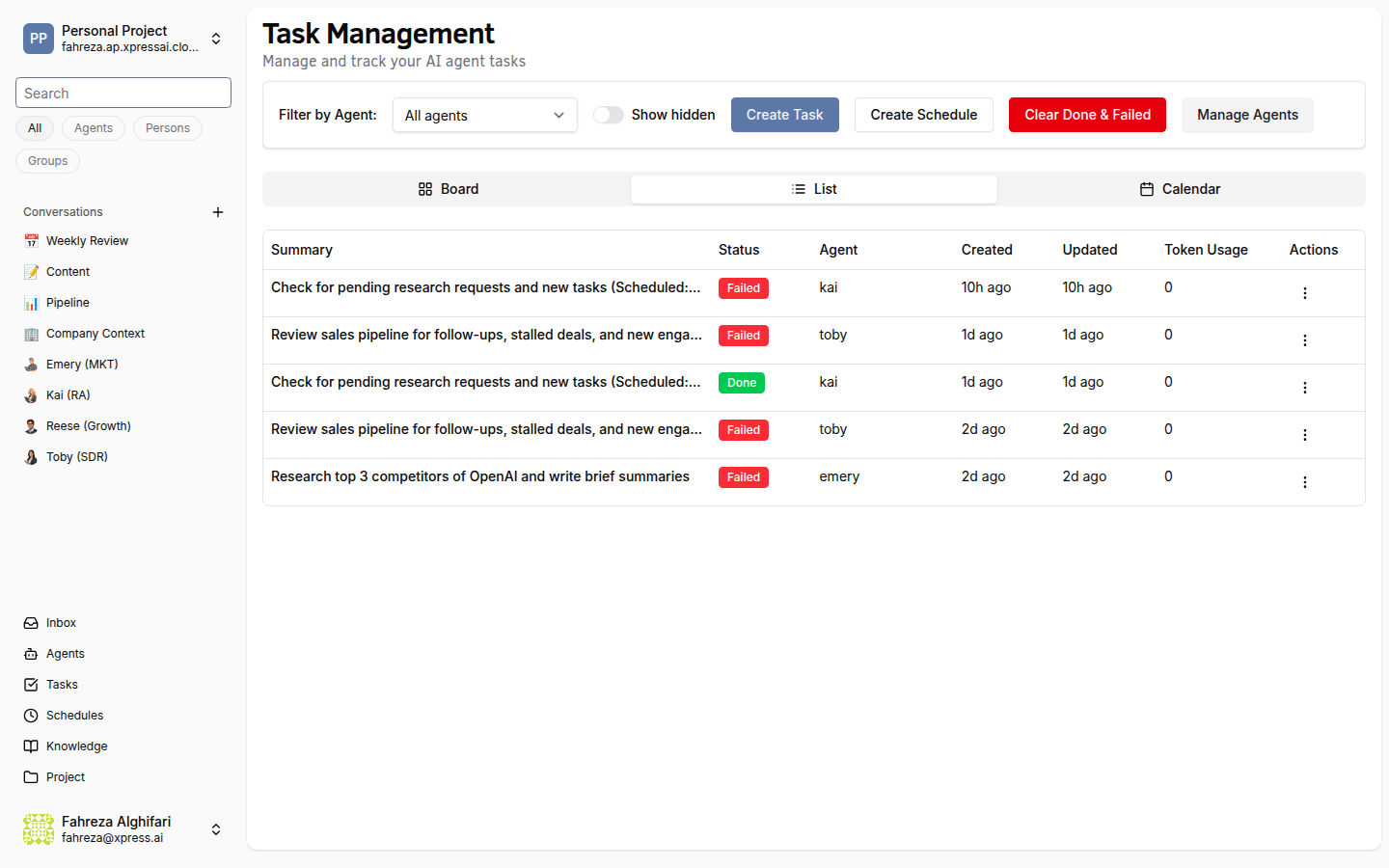
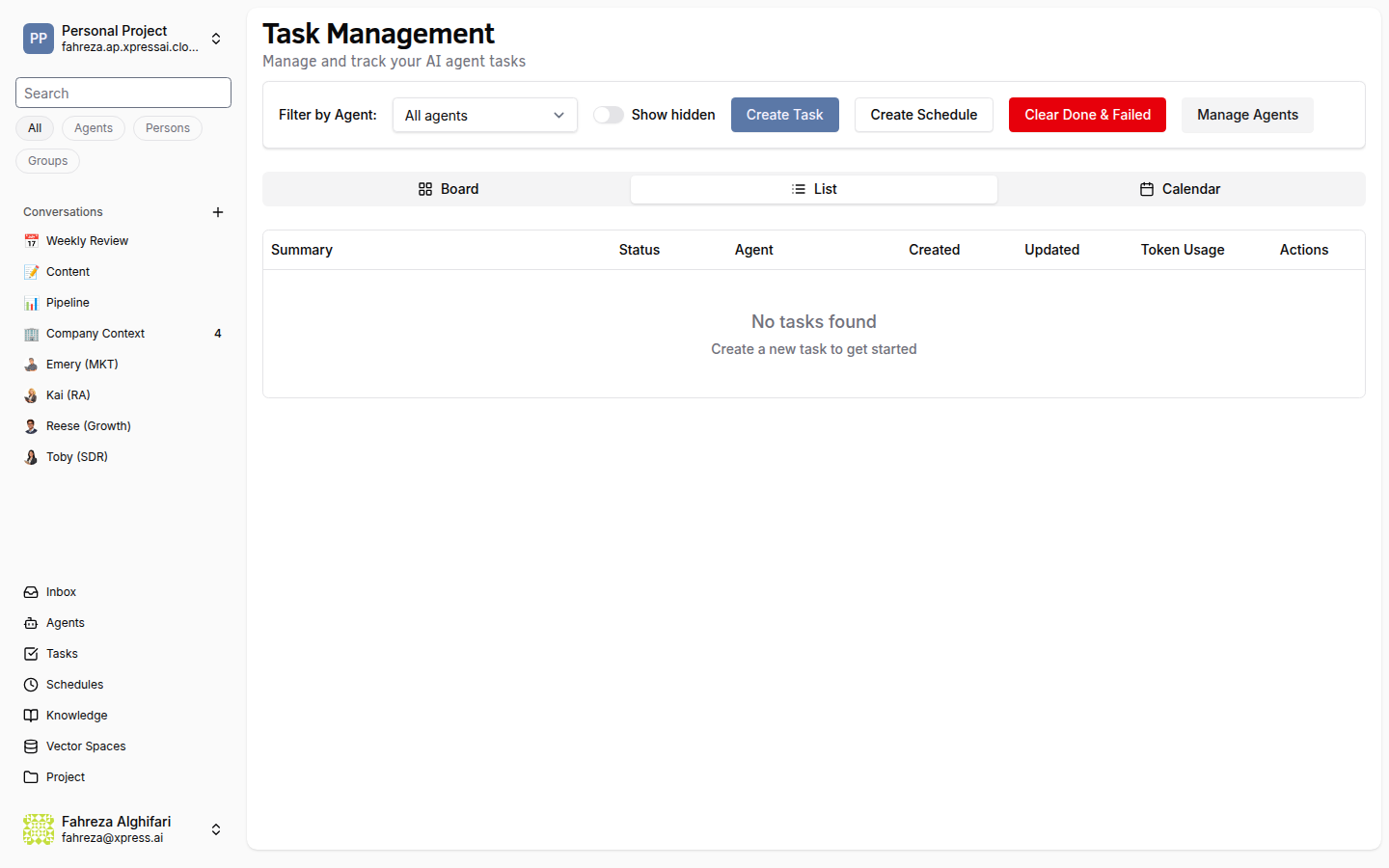
Tasks are displayed in a sortable table with columns for summary, status, assignee, and dates. Click column headers to sort. This view is best for scanning a large number of tasks or filtering by specific criteria.
Calendar view
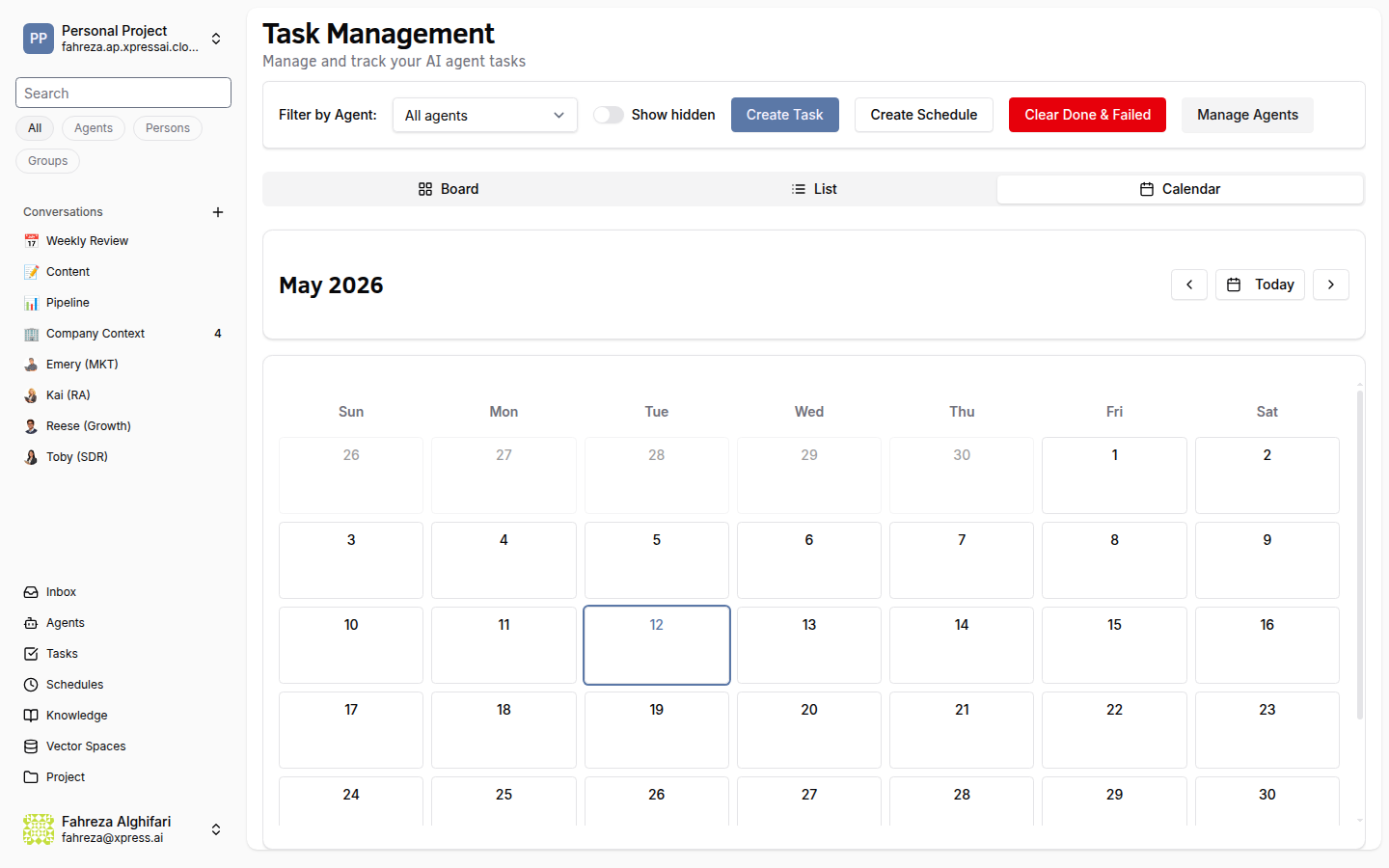
Tasks are displayed on a timeline based on their due date. Tasks without a due date do not appear in the calendar view. This view is best for understanding when tasks are scheduled and spotting conflicts or gaps in your team's workload.
3. Interact with tasks
In all three views, click a task to open its detail view. From the detail view, you can edit the task, change its assignee, update subtasks, or view the agent's conversation log.
Verify
- Switch between all three views and confirm that the same tasks appear in each.
- In Kanban view, drag a task to a different column and verify the status updates in the other views.
Kanban is the most popular view for day-to-day work. Use List view when you need to find a specific task quickly, and Calendar view for planning and scheduling.