Search a Knowledge Base
Query a vector space using natural language. Results are ranked by semantic similarity, returning the most relevant document chunks.
Prerequisites
- You are signed in to the XpressAI Platform.
- You have a vector space with at least one indexed document (see Upload Documents).
Steps
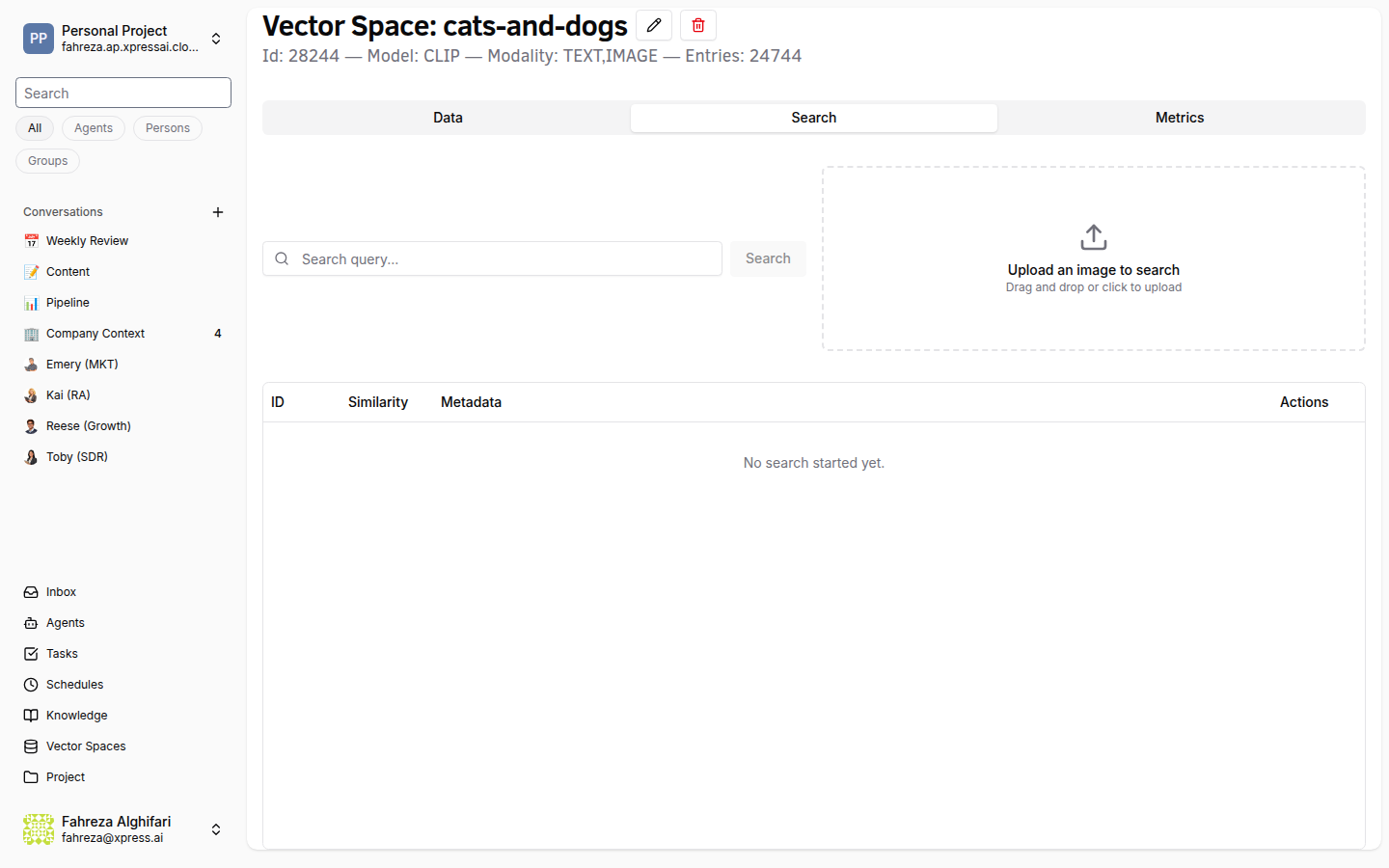
- Navigate to the Knowledge section from the sidebar.
- Select the vector space you want to search.
- Click the Search tab.
- Type a natural language query into the search field.
- Press Enter or click Search.
- Results appear ranked by semantic similarity, showing the most relevant document chunks first.
info
Search returns the most relevant document chunks matching your query, ranked by semantic similarity. This is the same mechanism agents use internally when performing RAG.
tip
Write your search queries as natural language questions or descriptions rather than keywords. For example, "How do I reset a user password?" will produce better results than "password reset."
Verify
- Search results display relevant chunks from your uploaded documents.
- Results are ordered by relevance, with the best match at the top.
- Clicking a result shows the source document and the matched chunk.