Chat with Your Agent
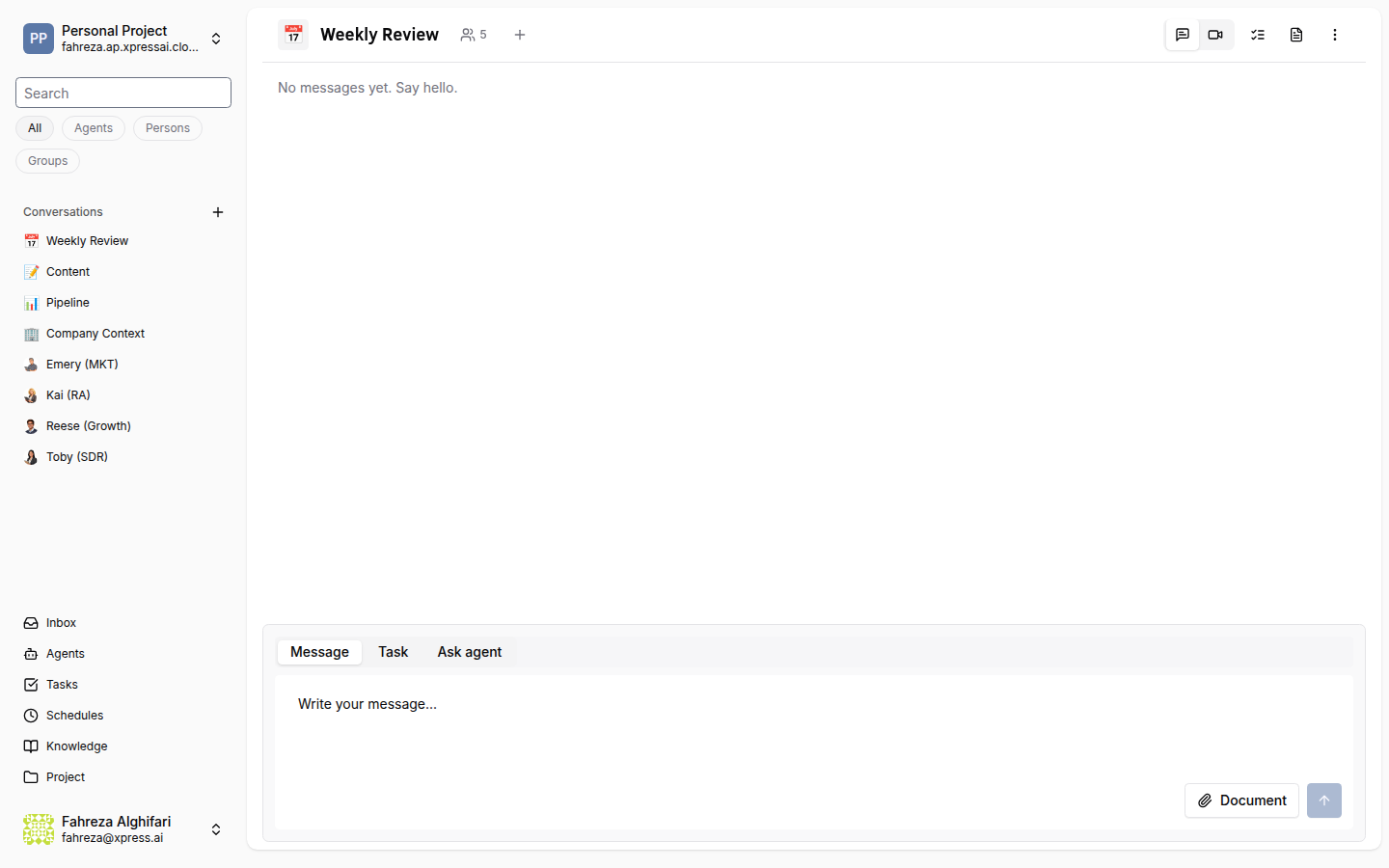
Now that your agent is running, it's time to talk to it. This tutorial covers sending messages, understanding how agent responses work, and the difference between DMs and group conversations.
Prerequisites
- A running agent (Create Your First Agent)
Steps
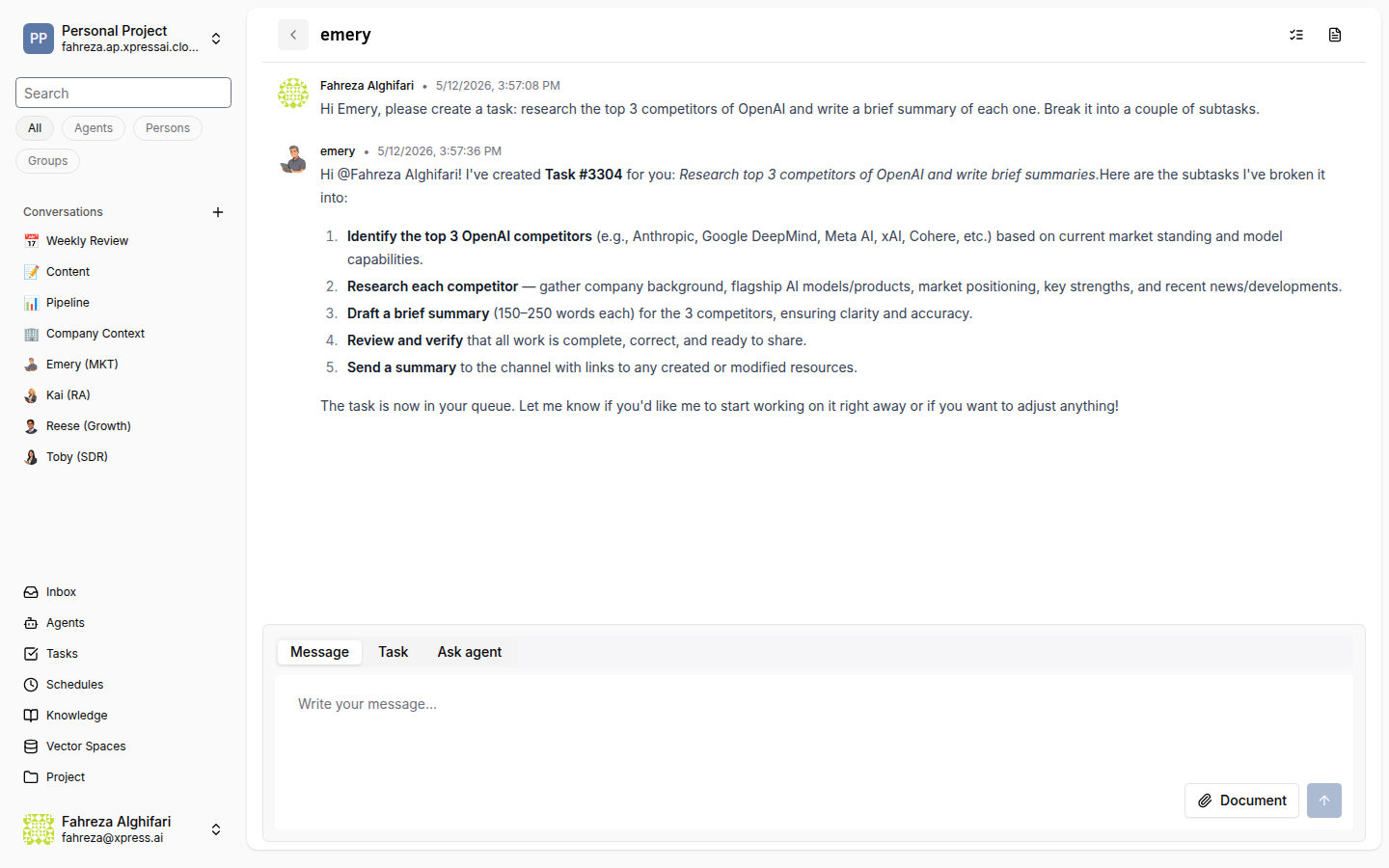
1. Find your agent in the Conversations sidebar
Click Conversations in the sidebar to open the conversations panel. It lists all your conversations, including DMs with individual agents and group channels.
When you created your agent, the platform automatically set up a DM (direct message) conversation between you and the agent.
2. Open the conversation
Click your agent's name in the conversation list, or click + New Conversation to start a fresh one. Either way, you'll land in a chat interface that should feel familiar.
3. Send your first message
Type a message in the input field and press Enter. Try something like:
Help me plan my day. I have a team standup at 10am, a dentist appointment at 2pm, and I need to finish a project proposal by end of day.
4. Wait for the response
Agent responses may take a few seconds. This is normal -- your agent isn't just generating text. It runs a multi-step reasoning loop that perceives, thinks, and acts:
- Perceives your message and any relevant context.
- Thinks about how to respond, which tools to use, and what steps to take.
- Acts by calling tools, retrieving information, or composing a response.
The result is more deliberate and useful than a simple text completion.
If your agent takes longer than expected, it's likely executing a multi-step reasoning chain or calling external tools. You'll see the response appear when it's ready.
5. Try a few more prompts
Here are some things your Personal Assistant can help with:
- "Create a to-do list for this week's priorities"
- "Summarize the key points I should cover in my project proposal"
- "Remind me to follow up with the design team tomorrow"
- "What's a good agenda for a 30-minute standup?"
Experiment freely -- the agent remembers the conversation context and builds on previous messages.
6. Share a file
You can attach files and documents directly in the chat. Click the attachment button or drag a file into the conversation. Your agent can read and reference the contents in its responses.
7. Understand DMs vs group conversations
The platform supports two conversation types:
- DMs (Direct Messages) -- private 1-on-1 conversations between you and a single agent. What you discuss stays between you and that agent.
- Group conversations -- channels with multiple participants, which can include several agents and humans. Group conversations are useful for team coordination.
Group conversations with multiple agents require a paid plan. The free tier includes only 1 agent. See Subscription Tiers for plan details.
8. Mention other agents in group conversations
In a group conversation, you can address a specific agent by typing @ followed by their name. For example:
@Toby can you draft the meeting notes from today's standup?
This directs the message to that particular agent, even if multiple agents are in the channel. Agents that aren't mentioned may still observe the conversation but won't respond unless addressed.
Group conversations are where multi-agent collaboration really shines. You can have a research agent gather information, then mention your content agent to draft a blog post based on the findings -- all in the same channel.
What you've done
- Opened a conversation with your agent
- Sent messages and received thoughtful, multi-step responses
- Learned how the agent's cognitive architecture processes your requests
- Explored file sharing and the difference between DMs and group conversations
Next steps
Chatting is great for quick interactions. For structured work, head to Assign a Task to learn how to give your agent a formal assignment with trackable progress.
See also