Connect Google Workspace
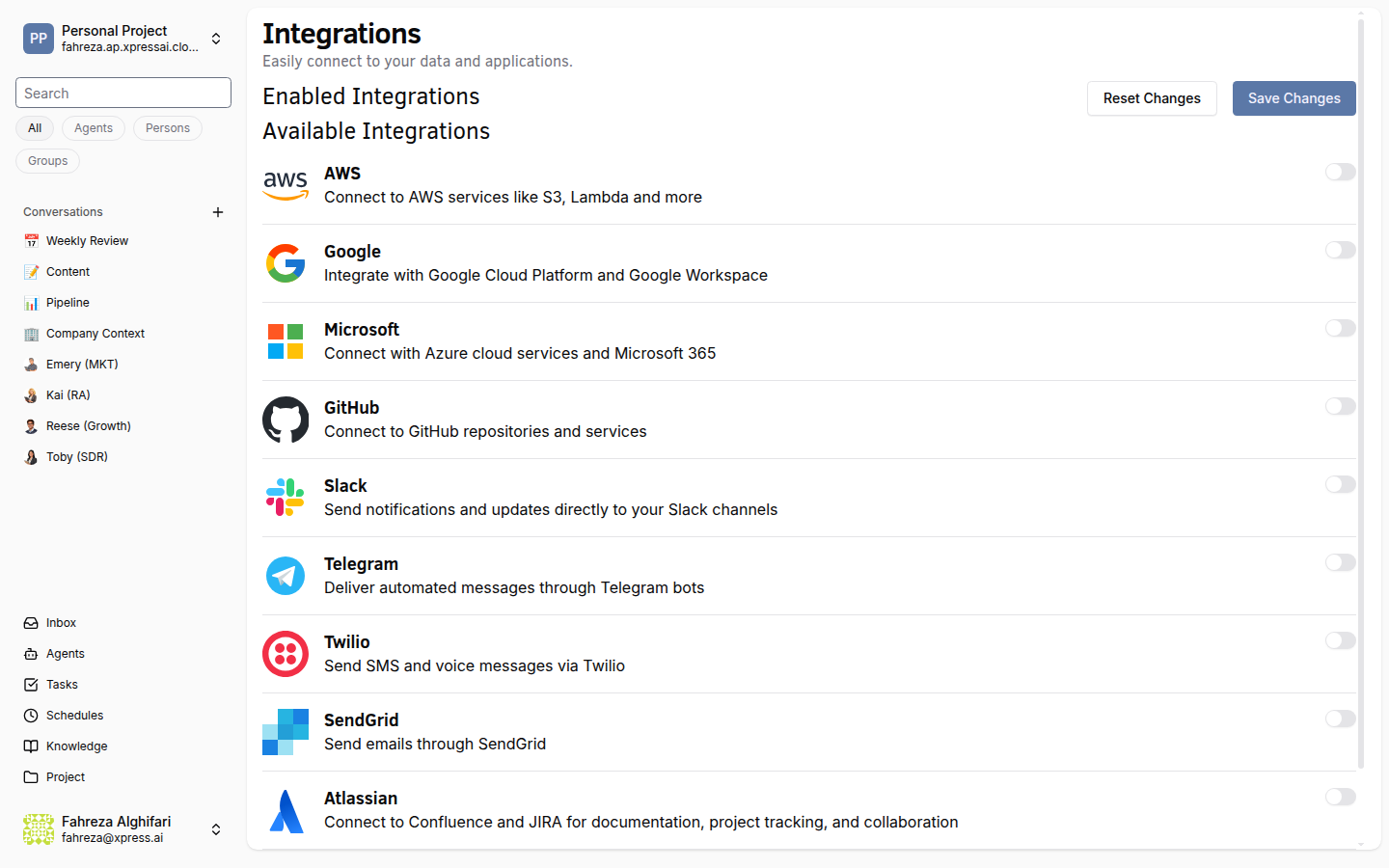
Let your agents interact with Google Docs, Sheets, and Slides on your behalf. In this tutorial, you'll configure the Google Workspace integration and verify it works by having your agent create a document.
Prerequisites
- An XpressAI Platform account with at least one agent deployed
- A Google Cloud project with the Workspace APIs enabled (if you don't have one, follow Google's guide to creating a project and enabling APIs)
- Google API credentials (service account JSON key or OAuth client credentials)
Steps
1. Navigate to Integrations
Open the sidebar and go to Settings (at the bottom), then select Integrations from the project settings menu.
2. Find Google Workspace
Scroll through the available integrations list and locate Google Workspace. Click on it to open the configuration panel.
3. Add your Google API credentials
Enter your credentials. Depending on your setup, this is either:
- Service account -- upload or paste your service account JSON key. This is typical for server-to-server access.
- OAuth credentials -- provide your OAuth client ID and secret. This is used when the integration acts on behalf of a specific user.
Fill in any additional configuration fields (such as the target Google Drive folder or domain) and click Save.
Integrations are stored at the workspace level -- the organizational container that groups your projects -- and shared across all projects within it. You only need to configure Google Workspace once per workspace, and every project in that workspace inherits it.
4. Test the integration
Open a conversation with your agent and send a message like:
Create a Google Doc titled "Meeting Notes"
Your agent uses the google_workspace_tools toolset to execute this. The toolset includes multiple tools covering CRUD operations for Docs, Sheets, and Slides.
5. Verify in Google Drive
Switch to your Google Drive and confirm the "Meeting Notes" document was created. You should see it in the folder associated with your integration credentials.
If the document doesn't appear, check that the service account has the correct Drive permissions and that the API scopes include https://www.googleapis.com/auth/drive.
6. Explore other available integrations
Google Workspace is one of several integrations the platform supports. Other integrations you can configure from the same settings page include:
- Slack -- post messages and monitor channels
- GitHub -- manage repositories, issues, and pull requests
- Atlassian -- interact with Confluence pages and Jira issues
- SendGrid -- send transactional emails
- Telegram -- send and receive messages via Telegram bots
- Twilio -- make and receive phone calls, send SMS
- AWS -- interact with AWS services
- Microsoft -- connect to Microsoft 365 services
Each integration follows the same pattern: add credentials, save, and your agents gain access to the corresponding tools.
What you've done
- Configured Google Workspace credentials in the platform
- Tested the integration by having your agent create a Google Doc
- Verified the document appeared in Google Drive
- Learned about additional integrations available on the platform
Next steps
Head to Voice Call with an Agent to talk to your agents in real time over voice.