Build a Knowledge Base
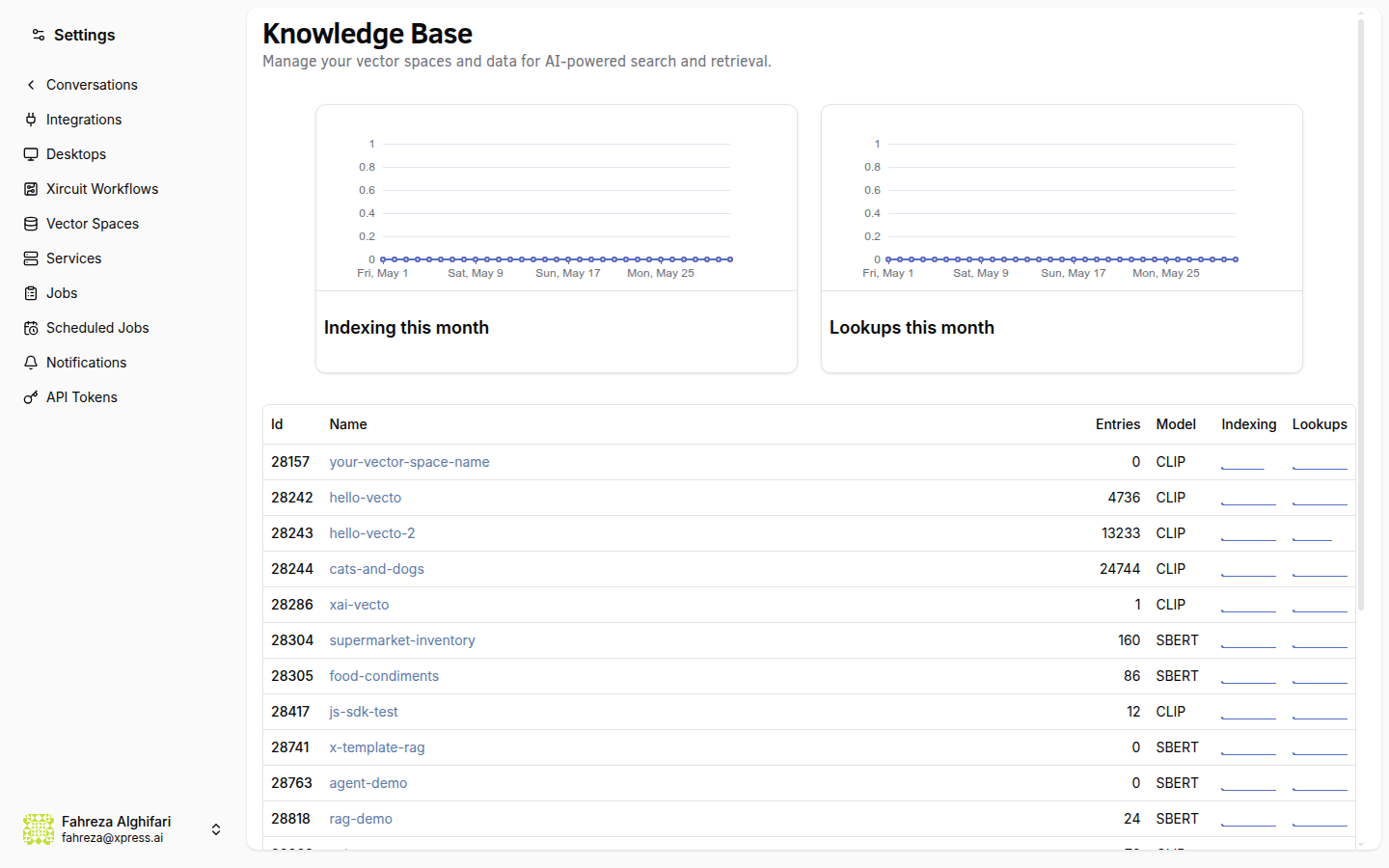
Give your agents the ability to search your own documents using Retrieval Augmented Generation (RAG). In this tutorial, you'll create a vector space, upload documents, and test semantic search -- so your agents can answer questions grounded in your data instead of relying solely on their training.
Prerequisites
- An XpressAI Platform account with at least one agent deployed
- One or more documents to upload (PDFs, text files, or similar)
Steps
1. Navigate to the Knowledge section
Open the sidebar and click Knowledge (under the Data section). This is where you manage all your vector spaces and uploaded documents.
2. Create a vector space
Click Create Vector Space. You'll need to provide:
- Name -- something descriptive like
product-docsorhr-policies. - Embedding model -- select the model used to convert your documents into vector embeddings. The default is a good starting point for most use cases.
Click Create to provision the space.
Choose your embedding model carefully. Once a vector space is created with a specific model, all documents in that space use the same embeddings. If you want to try a different model, create a separate vector space.
3. Upload documents
With your vector space selected, upload your files. The platform accepts PDF, TXT, DOCX, Markdown, and CSV files, among others. Check the upload dialog for the full list of supported formats. Each file is chunked, embedded, and indexed automatically.
You can upload multiple files at once. Larger documents take a moment to process -- the indexing happens in the background.
4. Test with semantic search
Once indexing is complete, use the search bar to test your knowledge base. Type a natural language query -- for example, "What is our refund policy?" -- and the platform returns the most semantically relevant chunks from your uploaded documents.
This is the same search your agents use when they access the knowledge base during a conversation.
5. Connect the knowledge base to an agent
To give an agent access to the vector space you just created, open the agent's page from the Agents sidebar, navigate to the Knowledge tab, and link the vector space. Once linked, the agent can search your documents during conversations.
6. Understand how agents use this
When an agent has RAG access to a vector space, it can search your knowledge base while answering questions. Instead of guessing or hallucinating, the agent retrieves relevant document chunks and uses them as context in its response. This is especially useful for company-specific information that the underlying LLM wouldn't know about.
7. View metrics
Check the metrics panel for your vector space to see:
- Daily indexing count -- how many documents were indexed each day.
- Storage usage -- how much space your embeddings and documents consume.
These metrics help you monitor growth and plan for scaling.
8. Create API access tokens (optional)
If you need to query or manage your vector space programmatically, you can create a vector space token. This token gives external applications API access to search your knowledge base -- useful for integrating RAG into custom tools or external services.
Vector space tokens are scoped to a specific vector space. Each token only grants access to the space it was created for.
What you've done
- Created a vector space with an embedding model
- Uploaded and indexed documents
- Tested semantic search with natural language queries
- Learned how agents use RAG to ground their answers in your data
- Reviewed indexing and storage metrics
Next steps
Head to Connect Google Workspace to let your agents read and write Google Docs, Sheets, and Slides.
See also