Desktop Automation
Give your agent access to a full cloud desktop so it can interact with graphical applications -- filling out web forms, clicking through legacy software, or performing data entry. The platform provisions a cloud VM, connects it to your agent, and uses a vision-driven control loop to execute tasks on the desktop.
Prerequisites
- An XpressAI Platform account with at least one agent deployed
- A subscription tier that includes desktop access (pricing applies beyond the free tier)
Steps
1. Add a desktop
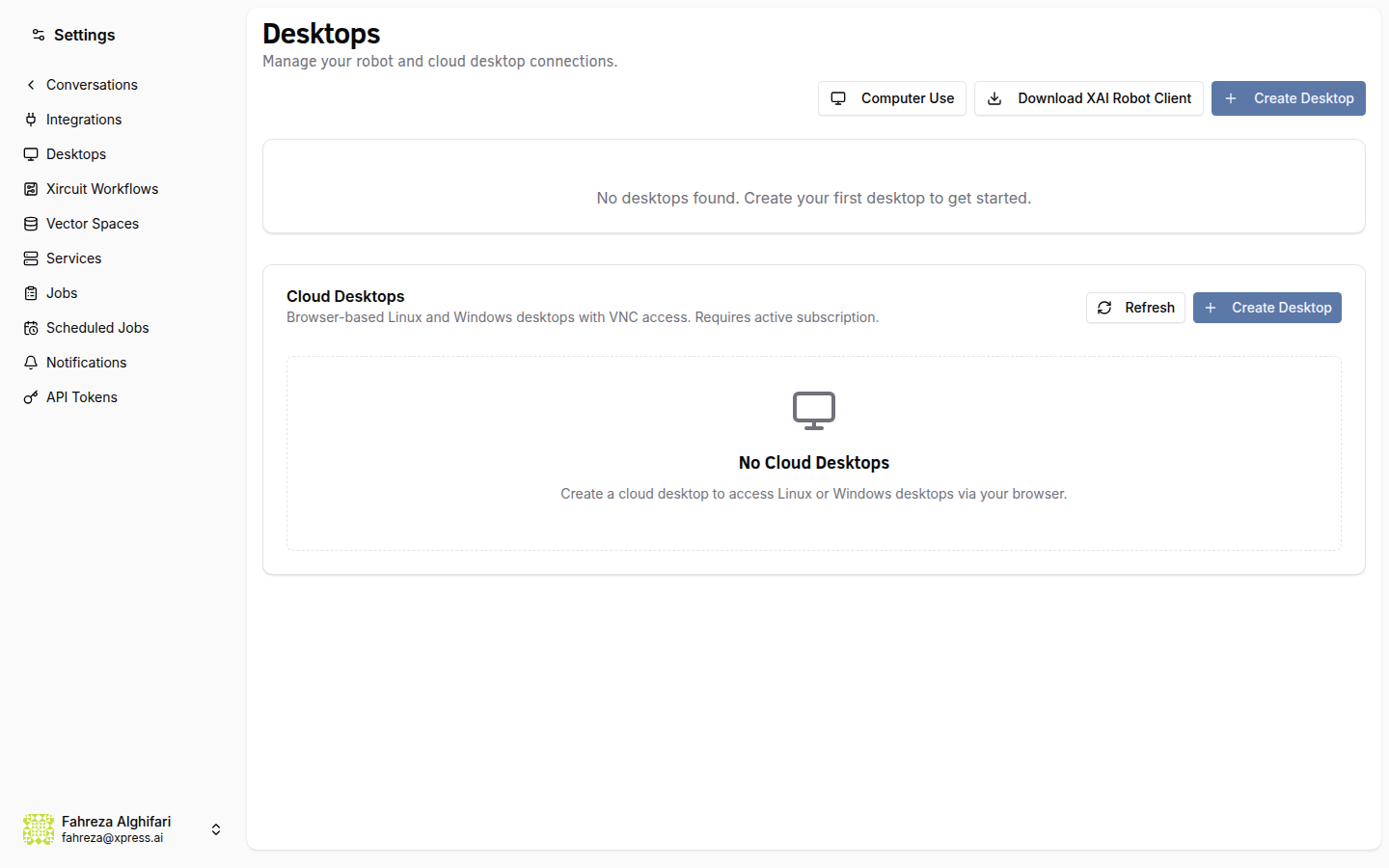
Navigate to Settings in the sidebar, then select Desktops. Click Add Desktop and choose your operating system:
- Linux -- lightweight, faster to provision, good for most automation tasks.
- Windows -- required for Windows-only applications and software.
The platform provisions a cloud VM for you. This takes a minute or two depending on the OS.
2. Connect to the desktop
Once the VM is provisioned, its status changes to Running. Click Connect to open a VNC session directly in your browser. You'll see a full graphical desktop environment -- you can interact with it manually to verify it's working or to install any software your agent will need.
You can install custom software on the desktop just like you would on any Linux or Windows machine. Anything you install persists across sessions.
3. Assign the desktop to an agent
Go to Agents in the sidebar and select the agent you want to give desktop access to. Open the agent's page and switch to the Desktop tab. Select your provisioned desktop from the dropdown and save.
Your agent now has access to the desktop automation tool (the platform's desktop automation capability), which enables computer-use actions on the assigned desktop.
4. Understand the computer-use loop
When your agent uses the desktop, it follows an automated vision-action loop:
Here's what happens at each step:
- Screenshot -- the platform captures a screenshot of the current desktop state.
- Vision Analysis -- the screenshot is sent to a vision-capable LLM for visual analysis. The model identifies UI elements, reads text, and understands the current state of the screen.
- Decide Action -- based on the task and the current screen, the model decides what to do next: click a button, type text, scroll, move the mouse, or press a key combination.
- Execute via Robot API -- the platform executes the chosen action on the desktop through the robot API (simulated mouse and keyboard input).
The loop repeats until the task is complete or the iteration limit is reached.
The computer-use loop has a default safety limit of 25 iterations per task. This prevents runaway loops if the agent gets stuck. If your task requires more steps, you can adjust this limit in the agent's configuration.
5. Test it out
Open a conversation with your agent and give it a desktop task. For example:
Open the web browser and go to example.com
The agent starts the computer-use loop, and you can watch it work in real time through the VNC session you opened in step 2. You'll see the mouse move, windows open, and text get typed -- all driven by the agent.
6. Watch the agent work
Keep your VNC session open while the agent executes. This is useful for:
- Debugging -- see exactly where the agent clicks and what it types.
- Monitoring -- verify the agent is making progress on the task.
- Learning -- understand how the vision-action loop interprets your desktop.
The agent works at its own pace. Each iteration involves a screenshot capture, a vision API call, and an action execution, so expect a few seconds per step.
7. Common use cases
Desktop automation is particularly useful for tasks that involve graphical interfaces with no API alternative:
- Filling out web forms -- the agent navigates forms, enters data, and submits.
- Interacting with legacy software -- applications that only have a GUI can be automated this way.
- Data entry -- copy data between systems by reading from one window and typing into another.
- Testing UIs -- walk through user flows and verify that screens render correctly.
What you've done
- Provisioned a cloud desktop (Linux or Windows)
- Connected to it via VNC in the browser
- Assigned the desktop to an agent
- Learned how the screenshot-vision-action loop works
- Tested desktop automation with a real task
Next steps
You've completed the core tutorials. From here, check out the Developer Tutorials to learn how to build custom agents, create your own tools, and automate tasks through the platform API.
See also